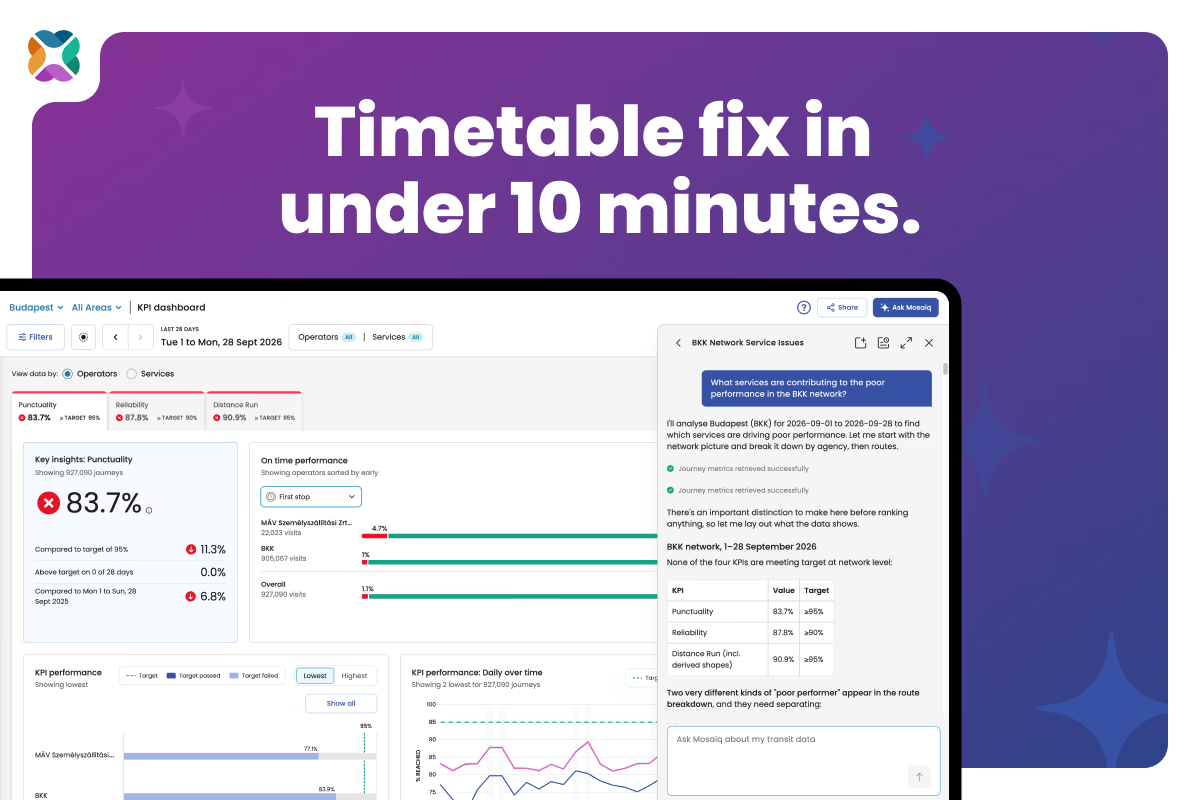
Copy and export defensible charts
Ask Mosaiq answers plain-language questions about your network with interactive charts and tables. You can now copy and export those charts and tables as plain text, CSV, or PNG – straight from your chat.
We’re making it as easy as possible to share defensible insights within your teams and beyond. Every answer shows its evidence, so what you share is grounded in your own network data. Your exports are ready for a board paper, an operator review, or an update to your authority.
Learn more about Ask Mosaiq.
Note: Copying and exporting from Ask Mosaiq is available on paid plans. Get in touch to find out more.
See how performance changes over time on the Network map
An on-time performance (OTP) figure by itself tells you whether your network improved, but it doesn’t tell you how that network’s performance is changing over time.
The new Performance over time view on the Network map shows you both. The new Trend chart shows the share of Early, On time, Late, and Not detected stop visits across your chosen time period, so you can see how performance has changed. The Compare function puts two time periods and their maps side by side, so you can spot where OTP for stops and areas improved or slipped – for example, after a timetable change, roadworks, or a network redesign.
Hover over a hexbin or stop on either map and it is highlighted on both, with each status’s share for each period shown in the Trend side panel. Download the comparison as a PNG to bring to your next performance review.
Open the Network map and select Performance over time to get started.
Note: Free plan users can compare periods within the last 56 days.
Isolate trips with the same scheduled running time
Peak trips are usually given a greater scheduled journey duration than off-peak or evening trips. When every trip on a service is averaged together, you’re blending these scheduled durations together – and measuring against a blended target means your analysis won’t be useful.
The new Scheduled journey duration filter fixes that. Open the Refine page panel on the Running times page and choose a scheduled duration. The trips table, chart, and Averages row then show only the trips given that time.
With a single scheduled target, the Actual and Delta figures show straight away whether a running time is too generous or too tight. The View total journey and View segments distributions show how many trips ran shorter, longer, or as expected, and where along the route time is gained or lost. Your selection carries through to your CSV export.
Isolating trips with the same scheduled duration used to mean hand-picking journey start times one by one. Now it takes a couple of clicks. Learn how to use the Scheduled journey duration filter.
Stay connected
Want to be the first to know about the latest Mosaiq updates? Make sure to check our Release Notes regularly. To get monthly updates direct to your inbox, sign up to our mailing list.

_October%202026.avif)